
Facebook Conversion Tracking for Commerce7: Setup instructions
Updated: September, 2026
These instructions will walk you through connecting the Facebook Conversion Tracking app for Commerce7 to your Meta Dataset and Conversions API.
Before you begin, you’ll need administrative access to your winery’s Meta business account and Commerce7 tenant. You’ll create or locate your Meta Dataset, generate a Conversions API access token, and then connect both to the app inside Commerce7.
Please allow about 20 minutes for the initial setup. Meta changes its interface regularly, so some labels or screens may look slightly different from the screenshots below.
Table of contents
Meta business account setup
If your winery already has a Meta business account with an Ad Account and Dataset, you can skip ahead to the Event Tracking Setup section.
Create a Meta business account
You will need a Meta business account to manage the assets used by this integration. Meta may refer to portions of this interface as Business Manager, Business Settings, or Meta Business Suite.
If you’re creating these assets for the first time, make sure they are owned by the winery’s business account rather than by an employee, agency, or outside contractor.
Create a Facebook ad account
Once you have a business manager account set up, you will also need an Ad Account and a Facebook Dataset attached to that ad account. The link above goes over how to set both of those up.
Make sure you have a valid payment method connected to the ad account!
For agencies: The winery’s Meta business account should own its Dataset, Facebook Page, and Ad Account. Your agency should be granted access as a Partner rather than creating or owning these assets on the client’s behalf. This keeps the winery in control of its advertising data and avoids significant ownership and access problems later.
Create a dataset
Important: Make sure the Dataset used by this app is connected to the Ad Account running your campaigns and available as a conversion data source where applicable.
To start, you will need a Dataset. If you already have a Meta Pixel installed, you may already have an existing Dataset associated with it. Whenever possible, use the existing Dataset connected to your advertising rather than creating a duplicate. If you do not have a Dataset, please create one.
Head to Events Manager > Sources and look for one of two things:
First, look for an existing Dataset, indicated by the symbol that looks like a network of bubbles instead of the old symbol of a laptop.

If that does not exist, look to the left for a green circle with a plus sign symbol in it. Click it to open the “Connect a New Data Source” modal, and see if “Offline” is available or greyed out. If it’s available, click that and create a new source. Don’t worry, you can add online events to this as well!
Event tracking setup
Configure the Meta dataset
In the Business Settings screen of your Business Manager account, find your Dataset under Sources, click it, and then click both the People tab and the Connected Assets tab. Under people, add yourself and anyone who needs access to event tracking and ads (with full permissions). Under assets, connect your ad account.
After that, click the grey “Open in Events Manager” button at the top right of that screen shown below.

Once you’re in the Events Manager screen, head into the Settings tab on your Dataset.

Copy down your Dataset ID, you will need this to setup the Commerce7 app!

Scroll down this page until you see “Set up direct integration“. Choose the “Set up with Dataset Quality API” option and click “Generate Access Token” and copy the token that appears in a modal, you will need it later!

Once you have your token, click on the Manage Integrations button in the Overview tab in Events Manager.
You may need previously recorded website events present in your dataset before seeing this next screen.
If this is a brand new dataset you’ve created, and you’re unable to see the “Manage Integrations” link below, email us for a copy of our GTM container so you can start tracking web events with the Meta Pixel that is part of your dataset. You should then be able to resume the setup at this step after 24 hours.
In the pop-up screen, click the Manage button next to Conversions API, or click Add New Integration and choose Conversions API.


If this is a brand new Dataset and you do not see the option above, look for the blue “Set up Conversions API” button instead.
Choose “Set Up Manually” on the next step.

Choose “Conversions API and Meta Pixel”.

Choose “Start CAPI Setup”

Meta requires you to complete the following Conversions API configuration screens before setup can be finalized. These selections do not control which Commerce7 events our app sends, but you should complete the setup as follows.
Select Purchase when Meta asks you to choose an event. The Commerce7 app will independently send all supported events, including Purchase, Reservation, and ClubJoin.

- In the “Select Events” step, choose “purchase” and hit Continue.
- Under “Event Detail parameters” and “Customer Information Parameters”, select the following if not checked by default: Event ID, Phone, Email, IP address, City, State, Country, Zip. Hit Continue.
- Press Confirm Setup.
- You do not need to send instructions to anyone. Hit Finish.
Lastly, we recommend returning to your Dataset’s Settings tab and enabling Extend attribution uploads and Allow historical conversion uploads, if those options are available in your account. This is particularly important for wineries because a reservation may be booked weeks before the guest actually visits and the final conversion data is sent to Meta.
With the Dataset ID and Access Token safely copied down, please proceed to the next section.
Commerce7 app setup
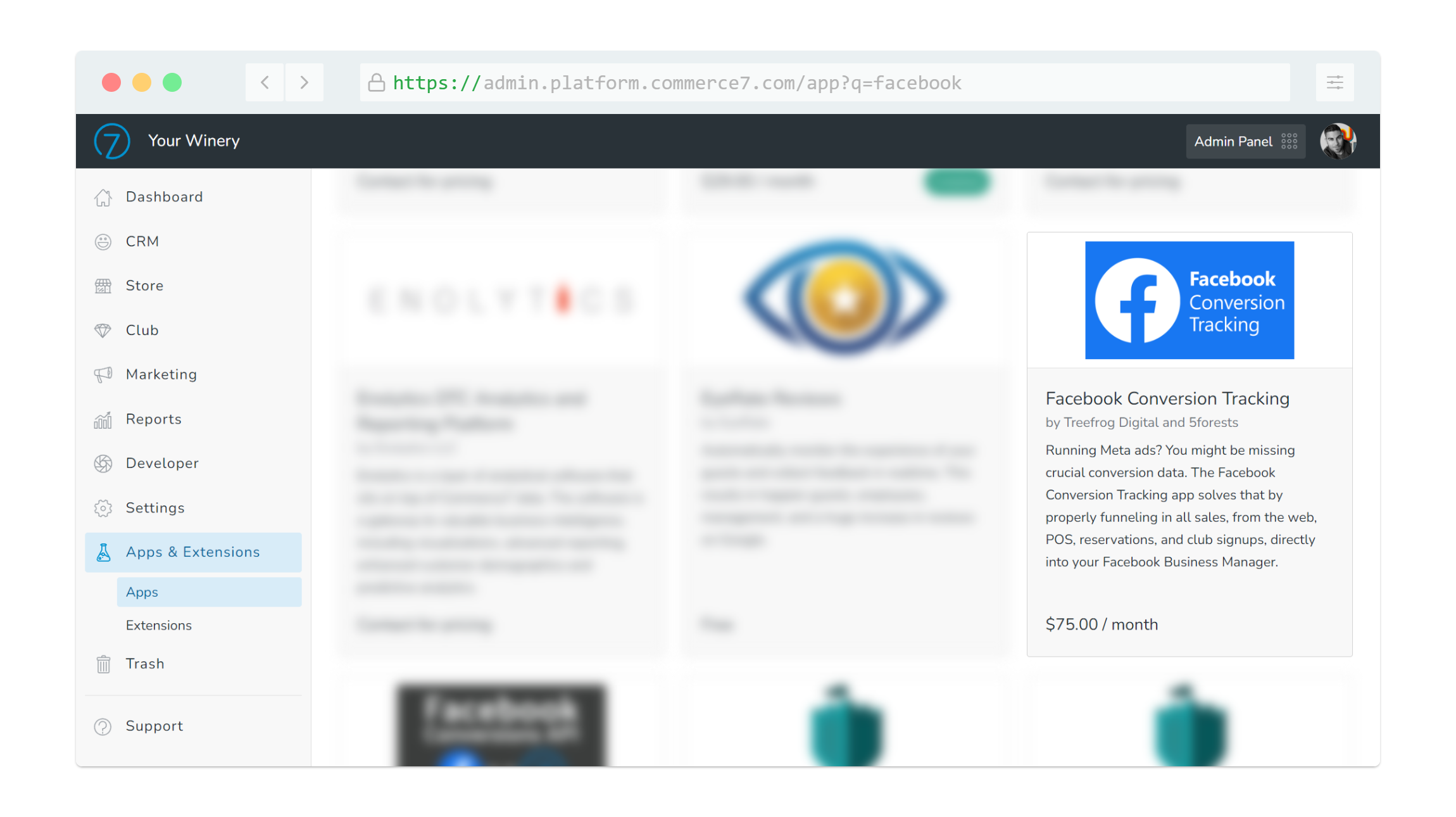
Log in to your Commerce7 admin panel. Select Apps & Extensions in the lower left navigation, click Facebook Conversion Tracking by 5forests and Treefrog Digital, and click Install.
Now the easy part! You should now have the two values required by the Commerce7 app:
- Dataset ID
- Dataset Access Token
In Commerce7, go to Marketing > Facebook > General Settings, paste each value into its corresponding field, and save.

The app is now connected. Next, verify that Meta is receiving your events.
Verify your installation
After connecting the app, we recommend confirming that Commerce7 events are reaching your Dataset in Meta Events Manager.
Open your Dataset in Meta Events Manager and review its event activity. As Commerce7 processes new activity, you should begin to see events such as:
- Purchase for Commerce7 orders
- Reservation for Commerce7 reservations
- ClubJoin for new Commerce7 club memberships
Purchase events may show different action_source values depending on how the Commerce7 order was created, including website, physical store, inbound, and other supported channels.
Meta may take some time to display newly received events and diagnostics, so a newly installed integration may not immediately show a full history of activity.
If you do not see new Commerce7 events after the winery has received qualifying activity, first confirm that the Dataset ID and Access Token saved in Commerce7 match the Dataset you are viewing in Events Manager. If the problem continues, contact our support team.
After installation
Read our blog for some advanced ways to use the Facebook Conversion Tracking app!
Using the Meta Pixel with this app
The server-side app is designed to work alongside your browser-side Meta Pixel rather than replace it.
If the Meta Pixel also sends a Purchase event for an ecommerce order, the browser and server events must use the same Event ID so Meta can recognize them as the same conversion and deduplicate them.
If you use the Google Tag Manager app for Commerce7, Purchase deduplication is already configured for you.
If you manage your own Meta Pixel implementation, use the Commerce7 order number as the eventID on the browser-side Purchase event. The Facebook Conversion Tracking app uses that same order number as the server-side event_id.
After updating the app: Commerce7 app updates that require manual intervention are uncommon, but an update may reset saved app settings. After updating Facebook Conversion Tracking, verify that your Dataset ID and Access Token are still present under Marketing > Facebook. If they have been cleared, generate a new access token in Meta using the steps above and reconnect the app.
Meta Limited Data Use
The Facebook Conversion Tracking app supports Meta’s Limited Data Use (LDU) processing for individual Commerce7 customers.
When the app is installed, Commerce7 includes a customer meta field named Facebook: Limited Data Use. Setting this field to true causes the app to include Meta’s Limited Data Use parameters when sending supported conversion events for that customer.
This can be used as part of your process for handling applicable customer privacy requests. The field can be updated manually on a Commerce7 customer profile or programmatically through the Commerce7 API as part of your own privacy workflow.
Limited Data Use is one component of Meta’s data processing controls and does not by itself make a winery compliant with the CCPA/CPRA or any other privacy law. Your business is responsible for determining when LDU should be applied and for meeting any other applicable privacy requirements.

If you happened to install our app prior to this LDU field being created, or if you accidently removed it, you can create your own inside of Commerce7 by going to Developer > Meta Data on the C7 backend, then create a new custom meta data object with the code facebook-limited-data-use and the field type set to True/False. The code must be typed exactly as shown in order to work.

Advanced support
If our team needs access to troubleshoot your Meta configuration, we may ask you to invite 5forests as a Partner in Facebook Business Manager. Our partner number is 360746004725557. After inviting, you will need to assign us all above assets, and give us manage permissions. This includes your Dataset and your Ad Account. Never send us your Dataset Access Token by email.
Want to understand exactly which Commerce7 events and parameters are sent? See our complete guide to Facebook Conversion Tracking for Commerce7.